2👋 Hello! As Nova users browse the extensions library, a good README can help them understand what your extension does, how it works, and what setup or configuration it may require.
4Not every extension will need every item described below. Use your best judgement when deciding which parts to keep to provide the best experience for your new users.
6💡 Quick Tip! As you edit this README template, you can preview your changes by selecting **Extensions → Activate Project as Extension**, opening the Extension Library, and selecting "Haskell Language Server" in the sidebar.
12🎈 Include a brief description of the features your extension provides. For example:
15**Haskell Language Server** provides deep integration with **An Important Language**, including the most important feature, something that's really helpful, and _a little-known secret!_
18🎈 It can also be helpful to include a screenshot or GIF showing your extension in action:
21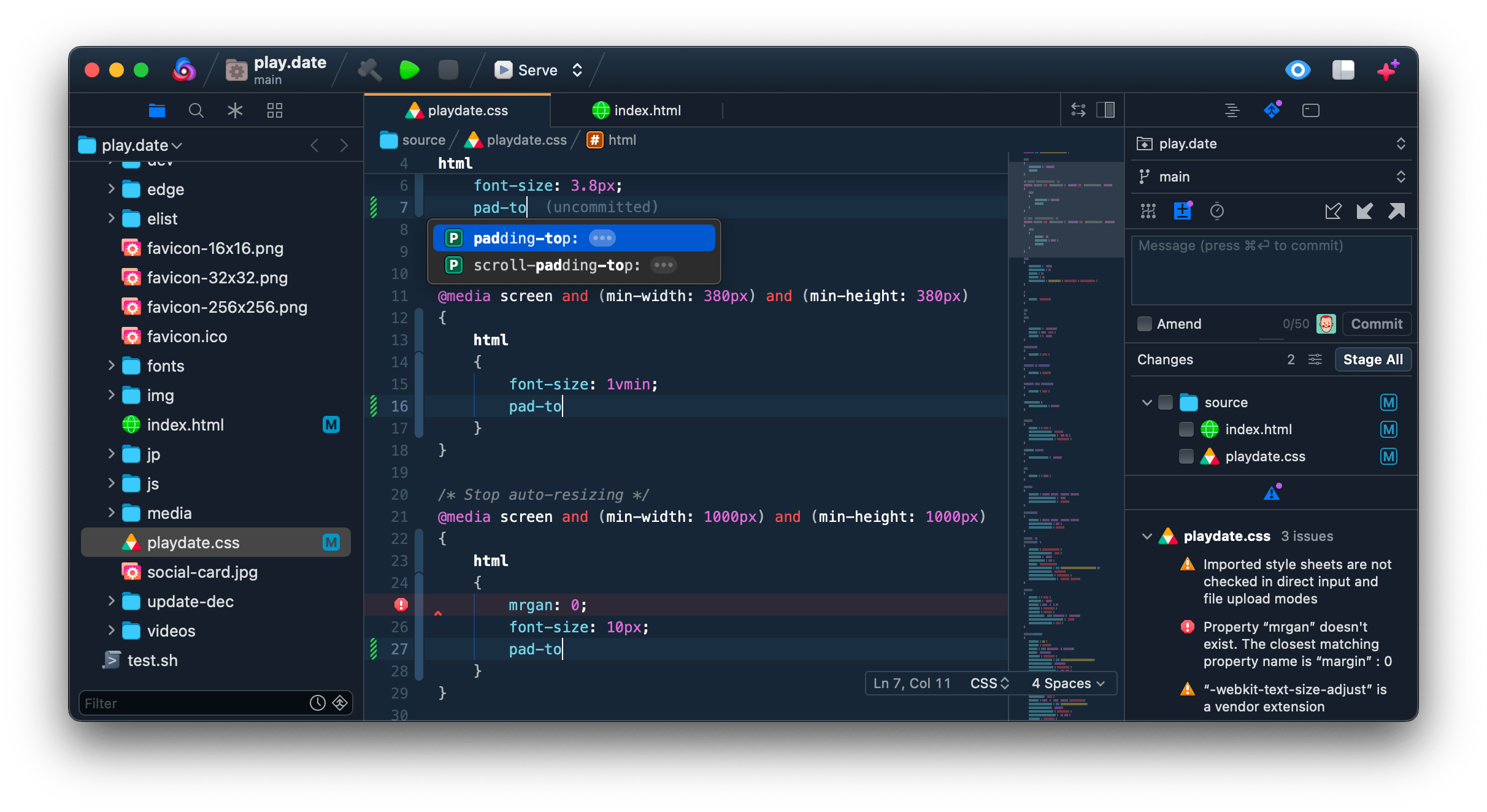
26🎈 If your extension depends on external processes or tools that users will need to have, it's helpful to list those and provide links to their installers:
29Haskell Language Server requires some additional tools to be installed on your Mac:
31- [Node.js 8.2.0](https://nodejs.org) and NPM 5.2.0 or newer
34✨ Providing tips, tricks, or other guides for installing or configuring external dependencies can go a long way toward helping your users have a good setup experience:
37> To install the current stable version of Node, click the "Recommended for Most Users" button to begin the download. When that completes, double-click the **.pkg** installer to begin installation.
42🎈 If your extension provides features that are invoked manually, consider describing those options for users:
45To run Haskell Language Server:
47- Select the **Editor → Haskell Language Server** menu item; or
48- Open the command palette and type `Haskell Language Server`
51🎈 Alternatively, if your extension runs automatically (as in the case of a validator), consider showing users what they can expect to see:
54Haskell Language Server runs any time you open a local project, automatically lints all open files, then reports errors and warnings in Nova's **Issues** sidebar and the editor gutter:
56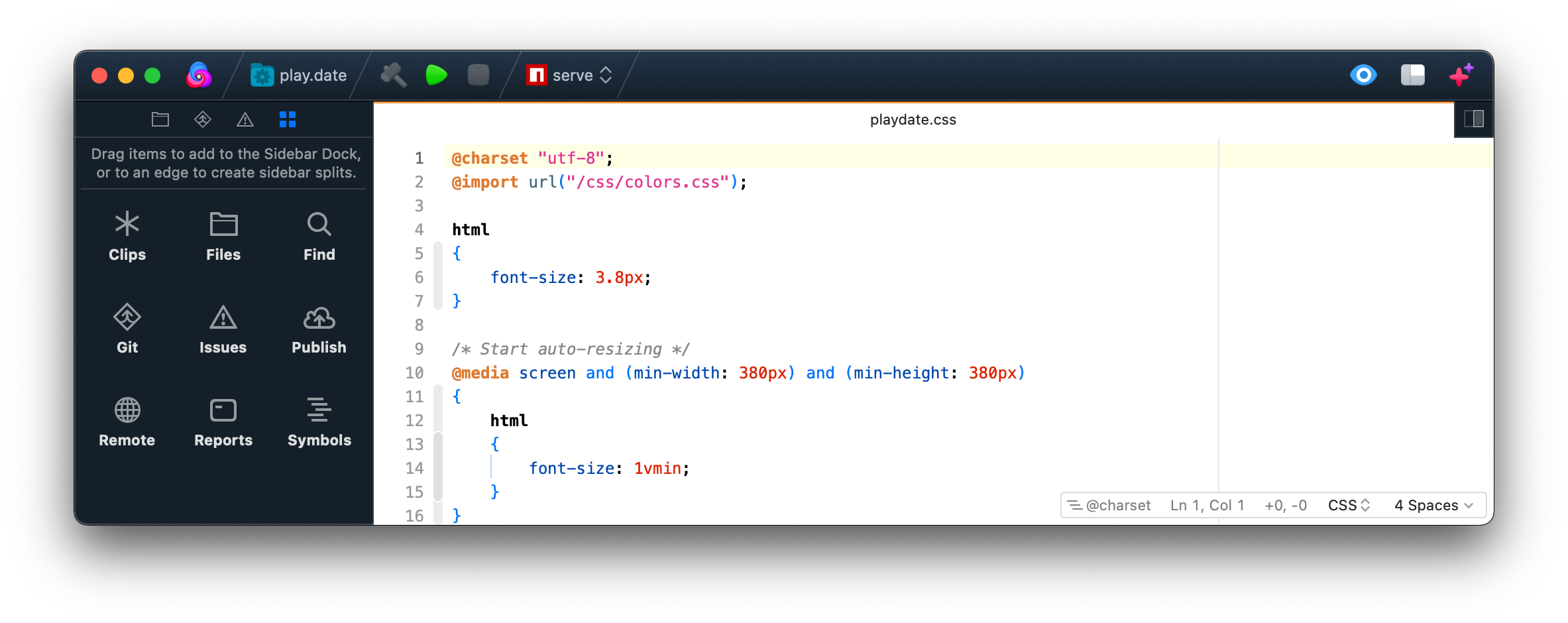
61🎈 If your extension offers global- or workspace-scoped preferences, consider pointing users toward those settings. For example:
64To configure global preferences, open **Extensions → Extension Library...** then select Haskell Language Server's **Preferences** tab.
66You can also configure preferences on a per-project basis in **Project → Project Settings...**
69👋 That's it! Happy developing!
71P.S. If you'd like, you can remove these comments before submitting your extension 😉
keysesc to close
- j k
- move down, up
- enter
- open
- esc
- back, or up a level
- 1 2 3 4
- readme, files, commits, refs
- /
- filter
- y
- copy the clone command
- c
- compare the chosen commit with another (or shift-click both)
- ?
- show or hide this list