4- [Registers](#registers)
5 - [User-defined registers](#user-defined-registers)
6 - [Special registers](#special-registers)
8- [Selecting and manipulating text with textobjects](#selecting-and-manipulating-text-with-textobjects)
9- [Navigating using tree-sitter textobjects](#navigating-using-tree-sitter-textobjects)
10- [Moving the selection with syntax-aware motions](#moving-the-selection-with-syntax-aware-motions)
13For a full interactive introduction to Helix, refer to the
14[tutor](https://github.com/helix-editor/helix/blob/master/runtime/tutor) which
15can be accessed via the command `hx --tutor` or `:tutor`.
17> 💡 Currently, not all functionality is fully documented, please refer to the
18> [key mappings](./keymap.md) list.
22In Helix, registers are storage locations for text and other data, such as the
23result of a search. Registers can be used to cut, copy, and paste text, similar
24to the clipboard in other text editors. Usage is similar to Vim, with `"` being
25used to select a register.
27### User-defined registers
29Helix allows you to create your own named registers for storing text, for
32- `"ay` - Yank the current selection to register `a`.
33- `"op` - Paste the text in register `o` after the selection.
35If a register is selected before invoking a change or delete command, the selection will be stored in the register and the action will be carried out:
37- `"hc` - Store the selection in register `h` and then change it (delete and enter insert mode).
38- `"md` - Store the selection in register `m` and delete it.
42| Register character | Contains |
45| `:` | Last executed command |
46| `"` | Last yanked text |
49The system clipboard is not directly supported by a special register. Instead, special commands and keybindings are provided. Refer to the
50[key map](keymap.md#space-mode) for more details.
52The black hole register is a no-op register, meaning that no data will be read or written to it.
56Helix includes built-in functionality similar to [vim-surround](https://github.com/tpope/vim-surround).
57The keymappings have been inspired from [vim-sandwich](https://github.com/machakann/vim-sandwich):
59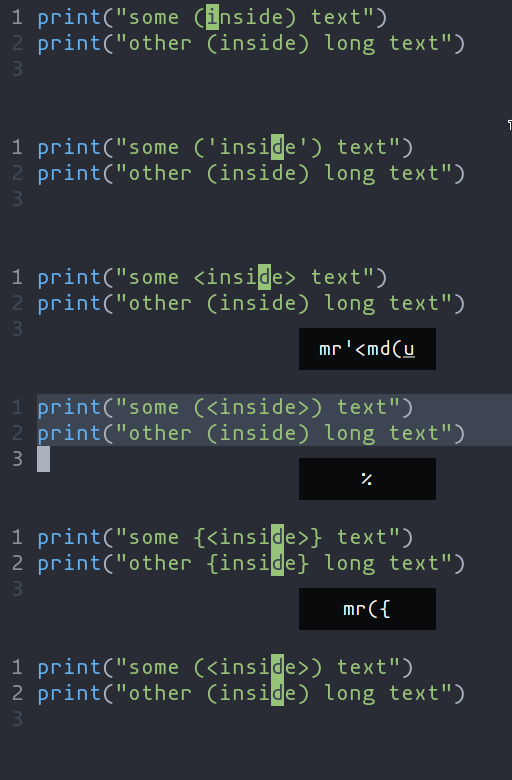
61| Key Sequence | Action |
62| --------------------------------- | --------------------------------------- |
63| `ms<char>` (after selecting text) | Add surround characters to selection |
64| `mr<char_to_replace><new_char>` | Replace the closest surround characters |
65| `md<char_to_delete>` | Delete the closest surround characters |
67You can use counts to act on outer pairs.
69Surround can also act on multiple selections. For example, to change every occurrence of `(use)` to `[use]`:
711. `%` to select the whole file
722. `s` to split the selections on a search term
733. Input `use` and hit Enter
744. `mr([` to replace the parentheses with square brackets
76Multiple characters are currently not supported, but planned for future release.
78## Selecting and manipulating text with textobjects
80In Helix, textobjects are a way to select, manipulate and operate on a piece of
81text in a structured way. They allow you to refer to blocks of text based on
82their structure or purpose, such as a word, sentence, paragraph, or even a
83function or block of code.
85
86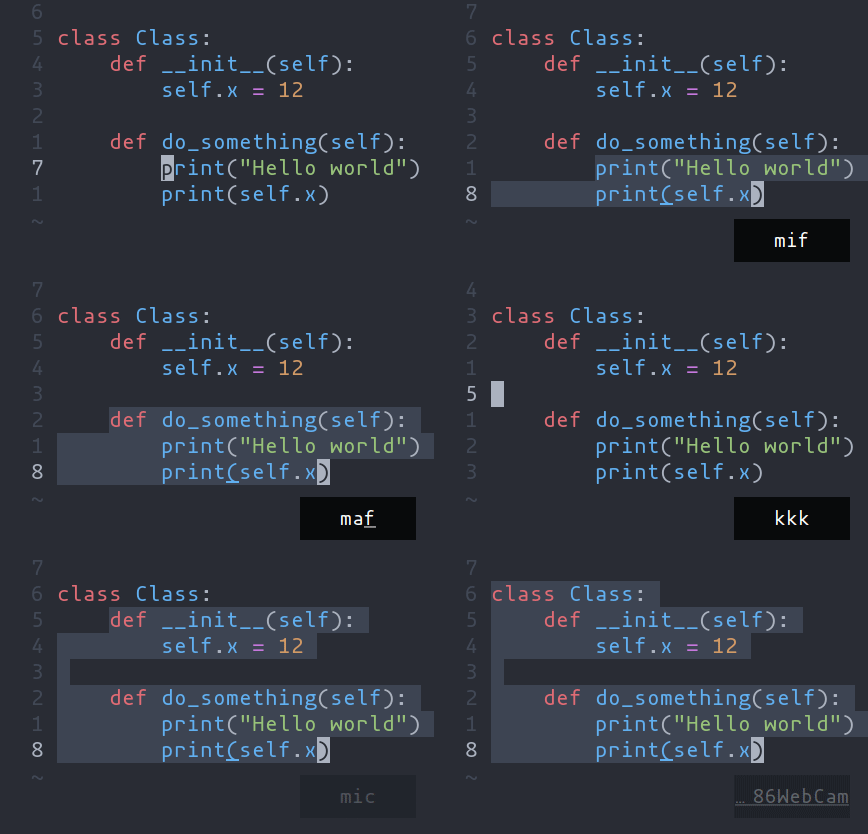
88- `ma` - Select around the object (`va` in Vim, `<alt-a>` in Kakoune)
89- `mi` - Select inside the object (`vi` in Vim, `<alt-i>` in Kakoune)
91| Key after `mi` or `ma` | Textobject selected |
96| `(`, `[`, `'`, etc. | Specified surround pairs |
97| `m` | The closest surround pair |
100| `a` | Argument/parameter |
105> 💡 `f`, `c`, etc. need a tree-sitter grammar active for the current
106document and a special tree-sitter query file to work properly. [Only
107some grammars][lang-support] currently have the query file implemented.
108Contributions are welcome!
110## Navigating using tree-sitter textobjects
112Navigating between functions, classes, parameters, and other elements is
113possible using tree-sitter and textobject queries. For
114example to move to the next function use `]f`, to move to previous
115class use `[c`, and so on.
117![Tree-sitter-nav-demo][tree-sitter-nav-demo]
119For the full reference see the [unimpaired][unimpaired-keybinds] section of the key bind
122> 💡 This feature relies on tree-sitter textobjects
123> and requires the corresponding query file to work properly.
125## Moving the selection with syntax-aware motions
127`Alt-p`, `Alt-o`, `Alt-i`, and `Alt-n` (or `Alt` and arrow keys) allow you to move the
128selection according to its location in the syntax tree. For example, many languages have the
129following syntax for function calls:
132func(arg1, arg2, arg3);
135A function call might be parsed by tree-sitter into a tree like the following.
139 function: (identifier) ; func
141 (arguments ; (arg1, arg2, arg3)
144 (identifier))) ; arg3
147Use `:tree-sitter-subtree` to view the syntax tree of the primary selection. In
148a more intuitive tree format:
155┌─────▼────┐ ┌────▼────┐
156│identifier│ │arguments│
157│ "func" │ ┌────┴───┬─────┴───┐
160 ┌─────────▼┐ ┌────▼─────┐ ┌▼─────────┐
161 │identifier│ │identifier│ │identifier│
162 │ "arg1" │ │ "arg2" │ │ "arg3" │
163 └──────────┘ └──────────┘ └──────────┘
166If you have a selection that wraps `arg1` (see the tree above), and you use
167`Alt-n`, it will select the next sibling in the syntax tree: `arg2`.
171func([arg1], arg2, arg3)
173func(arg1, [arg2], arg3);
176Similarly, `Alt-o` will expand the selection to the parent node, in this case, the
180func[(arg1, arg2, arg3)];
183There is also some nuanced behavior that prevents you from getting stuck on a
184node with no sibling. When using `Alt-p` with a selection on `arg1`, the previous
185child node will be selected. In the event that `arg1` does not have a previous
186sibling, the selection will move up the syntax tree and select the previous
187element. As a result, using `Alt-p` with a selection on `arg1` will move the
188selection to the "func" `identifier`.
190[lang-support]: ./lang-support.md
191[unimpaired-keybinds]: ./keymap.md#unimpaired
192[tree-sitter-nav-demo]: https://user-images.githubusercontent.com/23398472/152332550-7dfff043-36a2-4aec-b8f2-77c13eb56d6f.gif
keysesc to close
- j k
- move down, up
- enter
- open
- esc
- back, or up a level
- 1 2 3 4
- readme, files, commits, refs
- /
- filter
- y
- copy the clone command
- c
- compare the chosen commit with another (or shift-click both)
- ?
- show or hide this list