4- [Registers](#registers)
5 - [User-defined registers](#user-defined-registers)
6 - [Special registers](#special-registers)
8- [Selecting and manipulating text with textobjects](#selecting-and-manipulating-text-with-textobjects)
9- [Navigating using tree-sitter textobjects](#navigating-using-tree-sitter-textobjects)
10- [Moving the selection with syntax-aware motions](#moving-the-selection-with-syntax-aware-motions)
13For a full interactive introduction to Helix, refer to the
14[tutor](https://github.com/helix-editor/helix/blob/master/runtime/tutor) which
15can be accessed via the command `hx --tutor` or `:tutor`.
17> 💡 Currently, not all functionality is fully documented, please refer to the
18> [key mappings](./keymap.md) list.
22In Helix, registers are storage locations for text and other data, such as the
23result of a search. Registers can be used to cut, copy, and paste text, similar
24to the clipboard in other text editors. Usage is similar to Vim, with `"` being
25used to select a register.
27### User-defined registers
29Helix allows you to create your own named registers for storing text, for
32- `"ay` - Yank the current selection to register `a`.
33- `"op` - Paste the text in register `o` after the selection.
35If a register is selected before invoking a change or delete command, the selection will be stored in the register and the action will be carried out:
37- `"hc` - Store the selection in register `h` and then change it (delete and enter insert mode).
38- `"md` - Store the selection in register `m` and delete it.
42Commands that use registers, like yank (`y`), use a default register if none is specified.
43These registers are used as defaults:
45| Register character | Contains |
48| `:` | Last executed command |
49| `"` | Last yanked text |
50| `@` | Last recorded macro |
54Some registers have special behavior when read from and written to.
56| Register character | When read | When written |
58| `_` | No values are returned | All values are discarded |
59| `#` | Selection indices (first selection is `1`, second is `2`, etc.) | This register is not writable |
60| `.` | Contents of the current selections | This register is not writable |
61| `%` | Name of the current file | This register is not writable |
62| `+` | Reads from the system clipboard | Joins and yanks to the system clipboard |
63| `*` | Reads from the primary clipboard | Joins and yanks to the primary clipboard |
65When yanking multiple selections to the clipboard registers, the selections
66are joined with newlines. Pasting from these registers will paste multiple
67selections if the clipboard was last yanked to by the Helix session. Otherwise
68the clipboard contents are pasted as one selection.
72Helix includes built-in functionality similar to [vim-surround](https://github.com/tpope/vim-surround).
73The keymappings have been inspired from [vim-sandwich](https://github.com/machakann/vim-sandwich):
75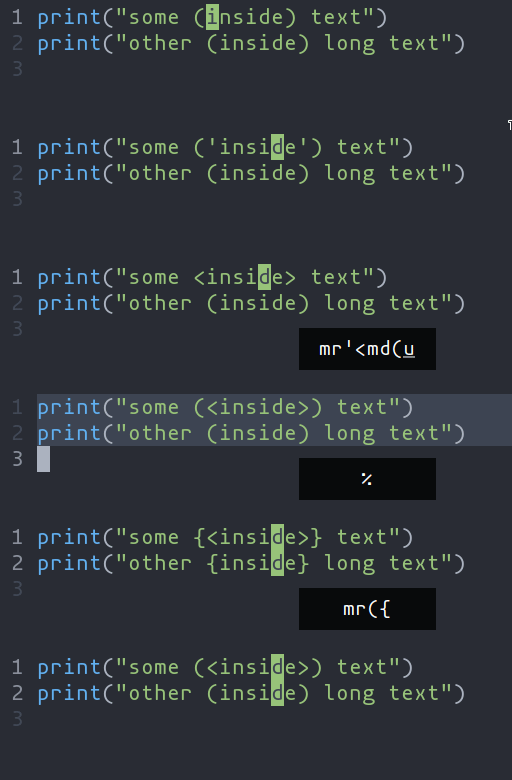
77| Key Sequence | Action |
78| --------------------------------- | --------------------------------------- |
79| `ms<char>` (after selecting text) | Add surround characters to selection |
80| `mr<char_to_replace><new_char>` | Replace the closest surround characters |
81| `md<char_to_delete>` | Delete the closest surround characters |
83You can use counts to act on outer pairs.
85Surround can also act on multiple selections. For example, to change every occurrence of `(use)` to `[use]`:
871. `%` to select the whole file
882. `s` to split the selections on a search term
893. Input `use` and hit Enter
904. `mr([` to replace the parentheses with square brackets
92Multiple characters are currently not supported, but planned for future release.
94## Selecting and manipulating text with textobjects
96In Helix, textobjects are a way to select, manipulate and operate on a piece of
97text in a structured way. They allow you to refer to blocks of text based on
98their structure or purpose, such as a word, sentence, paragraph, or even a
99function or block of code.
101
102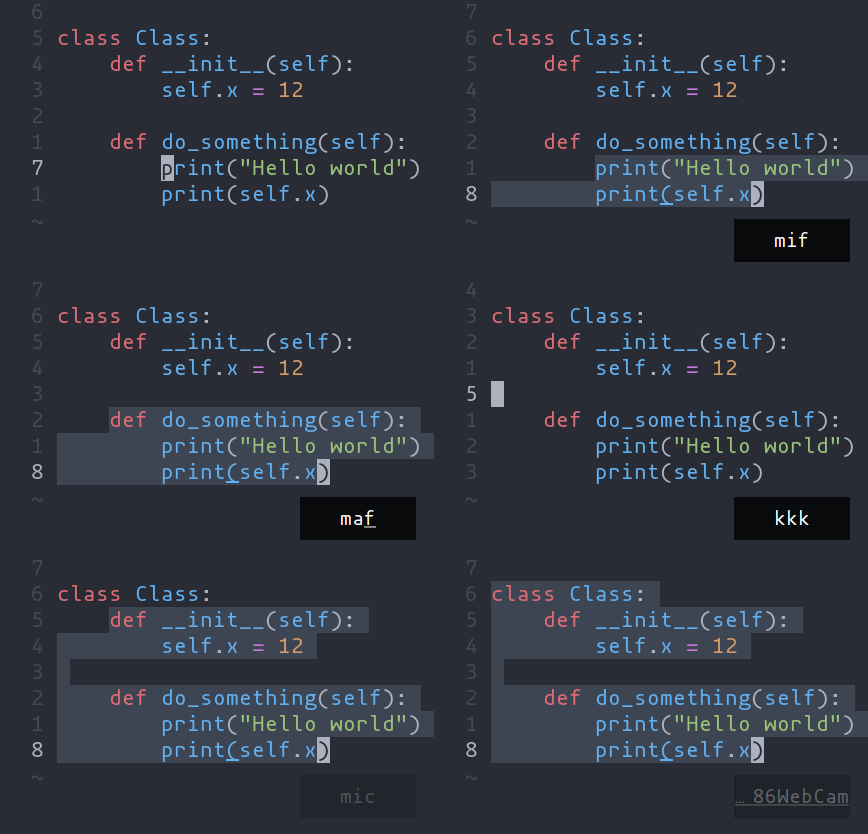
104- `ma` - Select around the object (`va` in Vim, `<alt-a>` in Kakoune)
105- `mi` - Select inside the object (`vi` in Vim, `<alt-i>` in Kakoune)
107| Key after `mi` or `ma` | Textobject selected |
112| `(`, `[`, `'`, etc. | Specified surround pairs |
113| `m` | The closest surround pair |
115| `t` | Type (or Class) |
116| `a` | Argument/parameter |
121> 💡 `f`, `t`, etc. need a tree-sitter grammar active for the current
122document and a special tree-sitter query file to work properly. [Only
123some grammars][lang-support] currently have the query file implemented.
124Contributions are welcome!
126## Navigating using tree-sitter textobjects
128Navigating between functions, classes, parameters, and other elements is
129possible using tree-sitter and textobject queries. For
130example to move to the next function use `]f`, to move to previous
131type use `[t`, and so on.
133![Tree-sitter-nav-demo][tree-sitter-nav-demo]
135For the full reference see the [unimpaired][unimpaired-keybinds] section of the key bind
138> 💡 This feature relies on tree-sitter textobjects
139> and requires the corresponding query file to work properly.
141## Moving the selection with syntax-aware motions
143`Alt-p`, `Alt-o`, `Alt-i`, and `Alt-n` (or `Alt` and arrow keys) allow you to move the
144selection according to its location in the syntax tree. For example, many languages have the
145following syntax for function calls:
148func(arg1, arg2, arg3);
151A function call might be parsed by tree-sitter into a tree like the following.
155 function: (identifier) ; func
157 (arguments ; (arg1, arg2, arg3)
160 (identifier))) ; arg3
163Use `:tree-sitter-subtree` to view the syntax tree of the primary selection. In
164a more intuitive tree format:
171┌─────▼────┐ ┌────▼────┐
172│identifier│ │arguments│
173│ "func" │ ┌────┴───┬─────┴───┐
176 ┌─────────▼┐ ┌────▼─────┐ ┌▼─────────┐
177 │identifier│ │identifier│ │identifier│
178 │ "arg1" │ │ "arg2" │ │ "arg3" │
179 └──────────┘ └──────────┘ └──────────┘
182If you have a selection that wraps `arg1` (see the tree above), and you use
183`Alt-n`, it will select the next sibling in the syntax tree: `arg2`.
187func([arg1], arg2, arg3)
189func(arg1, [arg2], arg3);
192Similarly, `Alt-o` will expand the selection to the parent node, in this case, the
196func[(arg1, arg2, arg3)];
199There is also some nuanced behavior that prevents you from getting stuck on a
200node with no sibling. When using `Alt-p` with a selection on `arg1`, the previous
201child node will be selected. In the event that `arg1` does not have a previous
202sibling, the selection will move up the syntax tree and select the previous
203element. As a result, using `Alt-p` with a selection on `arg1` will move the
204selection to the "func" `identifier`.
206[lang-support]: ./lang-support.md
207[unimpaired-keybinds]: ./keymap.md#unimpaired
208[tree-sitter-nav-demo]: https://user-images.githubusercontent.com/23398472/152332550-7dfff043-36a2-4aec-b8f2-77c13eb56d6f.gif
keysesc to close
- j k
- move down, up
- enter
- open
- esc
- back, or up a level
- 1 2 3 4
- readme, files, commits, refs
- /
- filter
- y
- copy the clone command
- c
- compare the chosen commit with another (or shift-click both)
- ?
- show or hide this list