7In this document we'll walk through an example of creating and publishing a desk that others can install. We'll create a simple "Hello World!" front-end with a "Hello" tile to launch it. For simplicity, the desk won't include an actual Gall agent, but we'll note everything necessary if there were one.
11To begin, we'll need to clone the [urbit git repo](https://github.com/urbit/urbit) from the Unix terminal:
14[user@host ~]$ git clone https://github.com/urbit/urbit urbit-git
17Once that's done, we can navigate to the `pkg` directory in our cloned repo:
20[user@host ~]$ cd urbit-git/pkg
22arvo btc-wallet garden grid interface npm webterm
23base-dev docker-image garden-dev herb landscape symbolic-merge.sh
24bitcoin ent ge-additions hs libaes_siv urbit
27Each desk defines its own `mark`s, in its `/mar` folder. There are no longer shared system marks that all userspace code knows, nor common libraries in `/lib` or `/sur`. Each desk is completely self-contained. This means any new desk will need a number of base files.
29To make the creation of a new desk easier, `base-dev` and `garden-dev` contain symlinks to all `/sur`, `/lib` and `/mar` files necessary for interacting with the `%base` and `%garden` desks respectively. These dev desks can be copied and merged with the `symbolic-merge.sh` included.
31Let's create a new `hello` desk:
34[user@host pkg]$ mkdir hello
35[user@host pkg]$ ./symbolic-merge.sh base-dev hello
36[user@host pkg]$ ./symbolic-merge.sh garden-dev hello
37[user@host pkg]$ cd hello
44Our desk must include a `sys.kelvin` file which specifies the kernel version it's compatible with. Let's create that:
47[user@host hello]$ echo "[%zuse 420]" > sys.kelvin
48[user@host hello]$ cat sys.kelvin
54We can also add a `desk.ship` file to specify the original publisher of this desk. We'll try this on a fakezod so let's just add `~zod` as the publisher:
57[user@host hello]$ echo "~zod" > desk.ship
58[user@host hello]$ cat desk.ship
64If we had Gall agents in this desk which should be automatically started when the desk is installed, we'd add them to a `hoon` list in the `desk.bill` file. It would look something like this:
72In this example we're not adding any agents, so we'll simply omit the `desk.bill` file.
76The final file we need is `desk.docket-0`. This one's more complicated, so we'll open it in our preferred text editor:
79[user@host hello]$ nano desk.docket-0
82In the text editor, we'll add the following:
86 info+'A simple hello world app.'
88 image+'https://media.urbit.org/docs/userspace/dist/wut.svg'
92 website+'https://urbit.org/docs/userspace/dist/guide'
97You can refer to the [Docket File](/docs/userspace/dist/docket) documentation for more details of what is required. In brief, the `desk.docket-0` file contains a `hoon` list of [clauses](/docs/userspace/dist/docket) which configure the appearance of the app tile, the source of the [glob](/docs/userspace/dist/glob), and some other metadata.
99We've given the app a [`%title`](/docs/userspace/dist/docket#title) of "Hello", which will be displayed on the app tile and will be the name of the app when others browse to install it. We've given the app tile a [`%color`](/docs/userspace/dist/docket#color) of `#8188C9`, and also specified the URL of an [`%image`](/docs/userspace/dist/docket#image) to display on the tile.
101The [`%base`](/docs/userspace/dist/docket#base) clause specifies the base URL path for the app. We've specified "hello" so it'll be `http://localhost:8080/apps/hello/...` in the browser. For the [glob](/docs/userspace/dist/glob), we've used a clause of [`%glob-ames`](/docs/userspace/dist/docket#glob-ames), which means the glob will be served from a ship over Ames, as opposed to being served over HTTP with a [`%glob-http`](/docs/userspace/dist/docket#glob-http) clause or having an Eyre binding with a [`%site`](/docs/userspace/dist/docket#site) clause. You can refer to the [glob](/docs/userspace/dist/glob) documentation for more details of the glob options. In our case we've specified `[~zod 0v0]`. Since `~zod` is the fakeship we'll install it on, the `%docket` agent will await a separate upload of the `glob`, so we can just specify `0v0` here as it'll get overwritten later.
103The [`%version`](/docs/userspace/dist/docket#version) clause specifies the version as a triple of major version, minor version and patch version. The rest is just some additional informative metadata which will be displayed in _App Info_.
105So let's save that to the `desk.docket-0` file and have a look at our desk:
109desk.docket-0 desk.ship lib mar sur sys.kelvin
112That's everything we need for now.
116Let's spin up a fakezod in which we can install our desk. By default a fakezod will be out of date, so we need to bootstrap with a pill from our urbit-git repo. The pills are stored in git lfs and need to be pulled into our repo first:
119[user@host hello]$ cd ~/urbit-git
120[user@host urbit-git]$ git lfs install
121[user@host urbit-git]$ git lfs pull
122[user@host urbit-git]$ cd ~/piers/fake
123[user@host fake]$ urbit -F zod -B ~/urbit-git/bin/multi-brass.pill
126Once our fakezod is booted, we'll need to create a new `%hello` desk for our app and mount it. We can do this in the dojo like so:
129> |merge %hello our %base
135Now, back in the Unix terminal, we should see the new desk mounted:
138[user@host fake]$ cd zod
143Currently it's just a clone of the `%base` desk, so let's delete its contents:
146[user@host zod]$ rm -r hello/*
149Next, we'll copy in the contents of the `hello` desk we created earlier. We must use `cp -LR` to resolve all the symlinks:
152[user@host zod]$ cp -LR ~/urbit-git/pkg/hello/* hello/
155Back in the dojo we can commit the changes and install the desk:
160kiln: installing %hello locally
161docket: awaiting manual glob for %hello desk
164The `docket: awaiting manual glob for %hello desk` message is because our `desk.docket-0` file includes a [`%glob-ames`](/docs/userspace/dist/docket#glob-ames) clause which specifies our ship as the source, so it's waiting for us to upload the glob.
166If we open a browser now, navigate to `http://localhost:8080` and login with the default fakezod code `lidlut-tabwed-pillex-ridrup`, we'll see our tile's appeared but it says "installing" with a spinner due to the missing glob:
168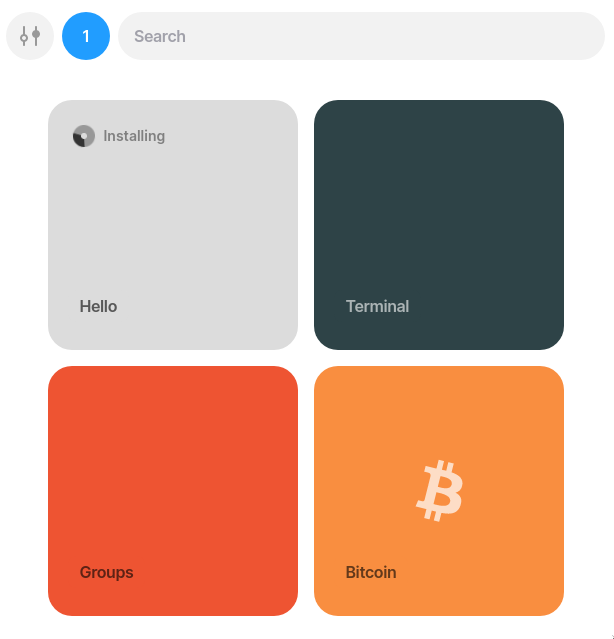
170## Create files for glob
172We'll now create the files for the glob. We'll use a very simple static HTML page that just displayes "Hello World!" and an image. Typically we'd have a more complex JS web app that talked to apps on our ship through Eyre's channel system, but for the sake of simplicity we'll forgo that. Let's hop back in the Unix terminal:
176[user@host ~]$ mkdir hello-glob
177[user@host ~]$ cd hello-glob
178[user@host hello-glob]$ mkdir img
179[user@host hello-glob]$ wget -P img https://media.urbit.org/docs/userspace/dist/pot.svg
180[user@host hello-glob]$ tree
188We've grabbed an image to use in our "Hello world!" page. The next thing we need to add is an `index.html` file in the root of the folder. The `index.html` file is mandatory; it's what will be loaded when the app's tile is clicked. Let's open our preferred editor and create it:
191[user@host hello-glob]$ nano index.html
194In the editor, paste in the following HTML and save it:
197<!DOCTYPE html> <html> <head> <style> div { text-align: center; }
198</style> </head> <title>Hello World</title> <body> <div>
199<h1>Hello World!</h1> <img src="img/pot.svg" alt="pot" width="219"
200height="196" /> </div> </body> </html>
203Our `hello-glob` folder should now look like this:
206[user@host hello-glob]$ tree
217We can now create a glob from the directory. To do so, navigate to `http://localhost:8080/docket/upload` in the browser. This will bring up the `%docket` app's [Globulator](/docs/userspace/dist/glob#globulator) tool:
219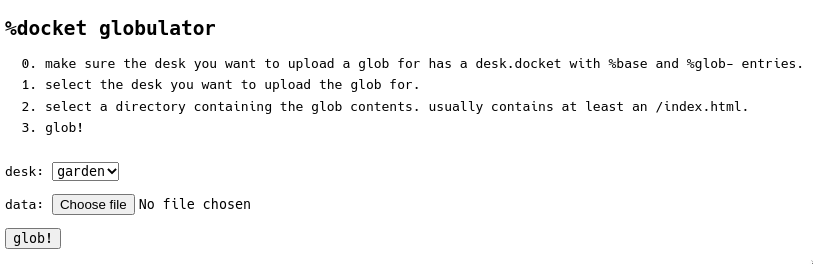
221Simply select the `hello` desk from the drop-down, click `Choose file` and select the `hello-glob` folder in the the file browser, then hit `glob!`.
223Now if we return to our ship's homescreen, we should see the tile looks as we specified in the docket file:
225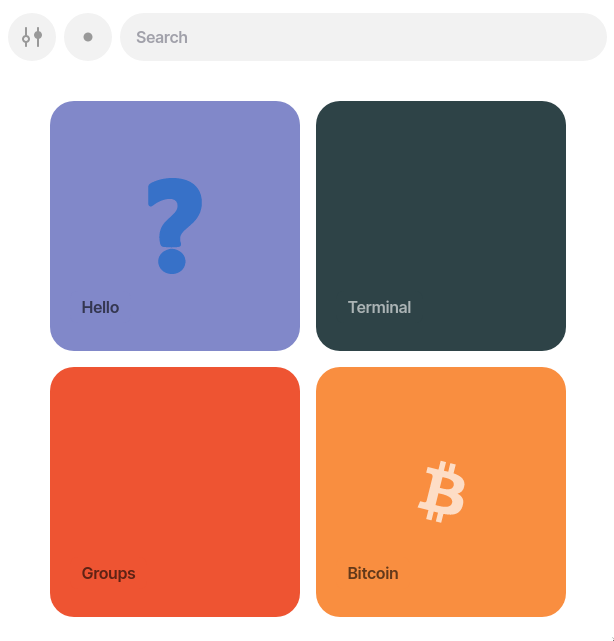
227And if we click on the tile, it'll load the `index.html` in our glob:
229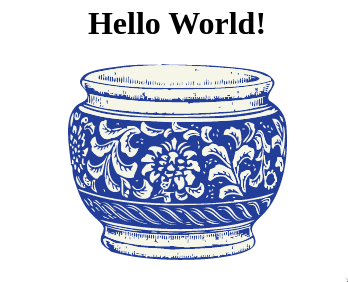
235The final step is publishing our desk with the `%treaty` agent so others can install it. To do this, there's a simple command in the dojo:
238> :treaty|publish %hello
242Note: For desks without a docket file (and therefore without a tile and glob), treaty can't be used. Instead you can make the desk public with `|public %desk-name`.
246Let's spin up another fake ship so we can try install it:
249[user@host hello-glob]$ cd ~/piers/fake
250[user@host fake]$ urbit -F bus
253Note: For desks without a docket file (and therefore without a tile and glob), users cannot install them through the web interface. Instead remote users can install it from the dojo with `|install ~our-ship %desk-name`.
255In the browser, navigate to `http://localhost:8081` and login with `~bus`'s code `riddec-bicrym-ridlev-pocsef`. Next, type `~zod/` in the search bar, and it should pop up a list of `~zod`'s published apps, which in this case is our `Hello` app:
257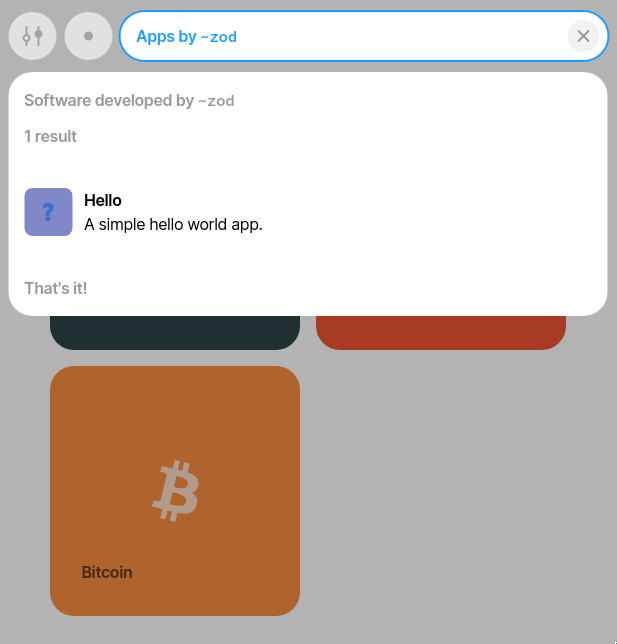
259When we click on the app, it'll show some of the information from the clauses in the docket file:
261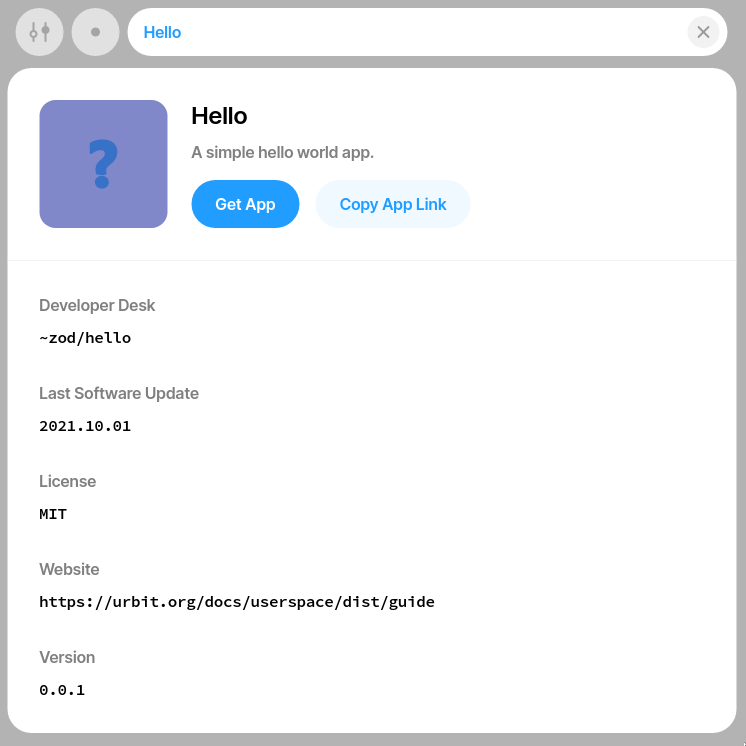
263Click `Get App` and it'll ask as if we want to install it:
265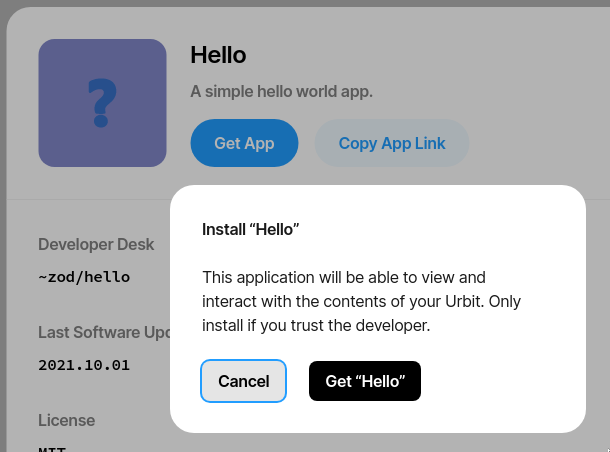
267Finally, click `Get "Hello"` and it'll be installed as a tile on `~bus` which can then be opened:
269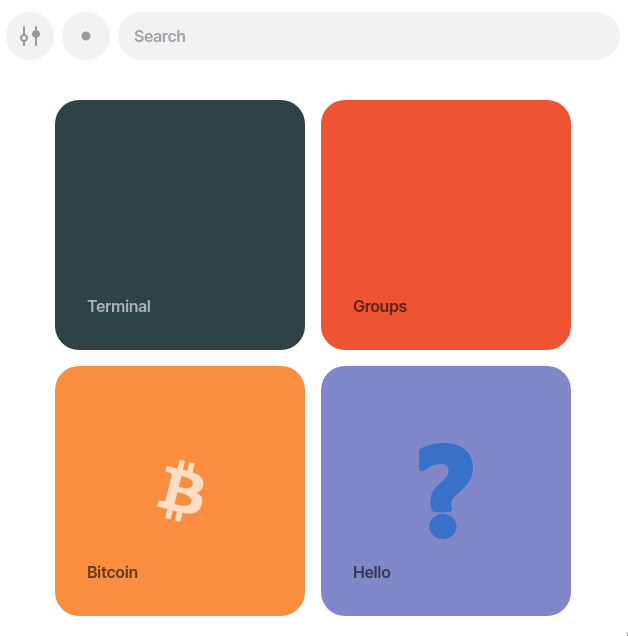
keysesc to close
- j k
- move down, up
- enter
- open
- esc
- back, or up a level
- 1 2 3 4
- readme, files, commits, refs
- /
- filter
- y
- copy the clone command
- c
- compare the chosen commit with another (or shift-click both)
- ?
- show or hide this list