2title = "Joining groups"
7Joining public groups is straightforward: search for the group host's Urbit ID, and join. Some groups are private, so you'll need approval to join.
9And still other groups are secret! Which means you can't find them, and you'll need to be invited to join.
11Let's walk through the process of finding and joining a public group.
14### 1. Open the Groups app
16Once you’re on the network, you’ll see Landscape, which is filled with large applications tiles: Talk, Terminal, and Groups. Click on Groups.
18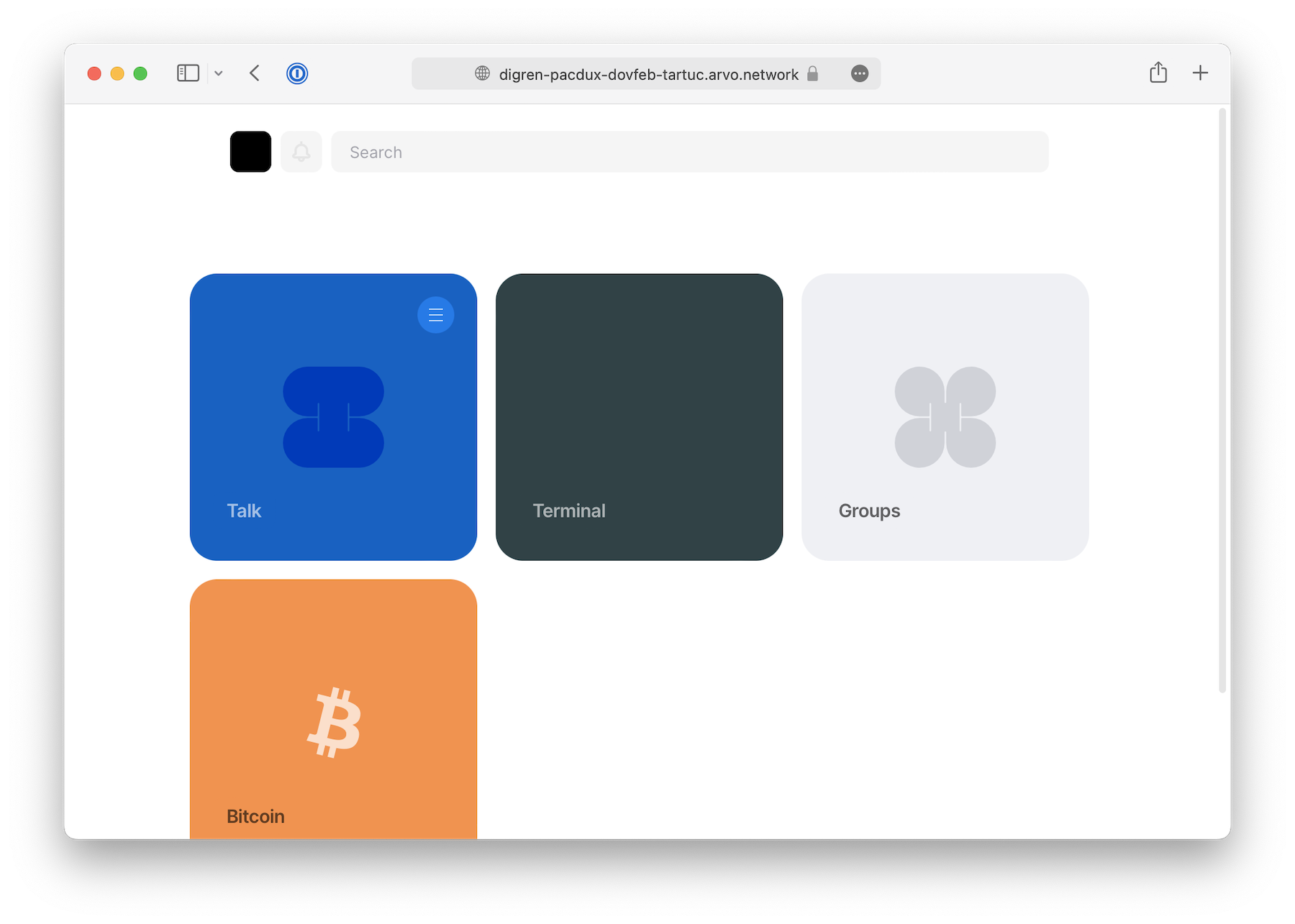
20### 2. Enter the group shortcode
22To join a group, you'll need to know its host Urbit ID (e.g. ~bitbet-bolbel) or its full Urbit address, also called a shortcode.
24Check out some public groups in the [urbit.org groups directory](/ecosystem?type=groups)
26As an example, we’ll start by joining UF, the official group of the Urbit Foundation.
28In the Groups app, click on "Find Groups" in the left column and enter `~halbex-palheb/uf-public`
30Then click on the "Join" button once the group appears.
32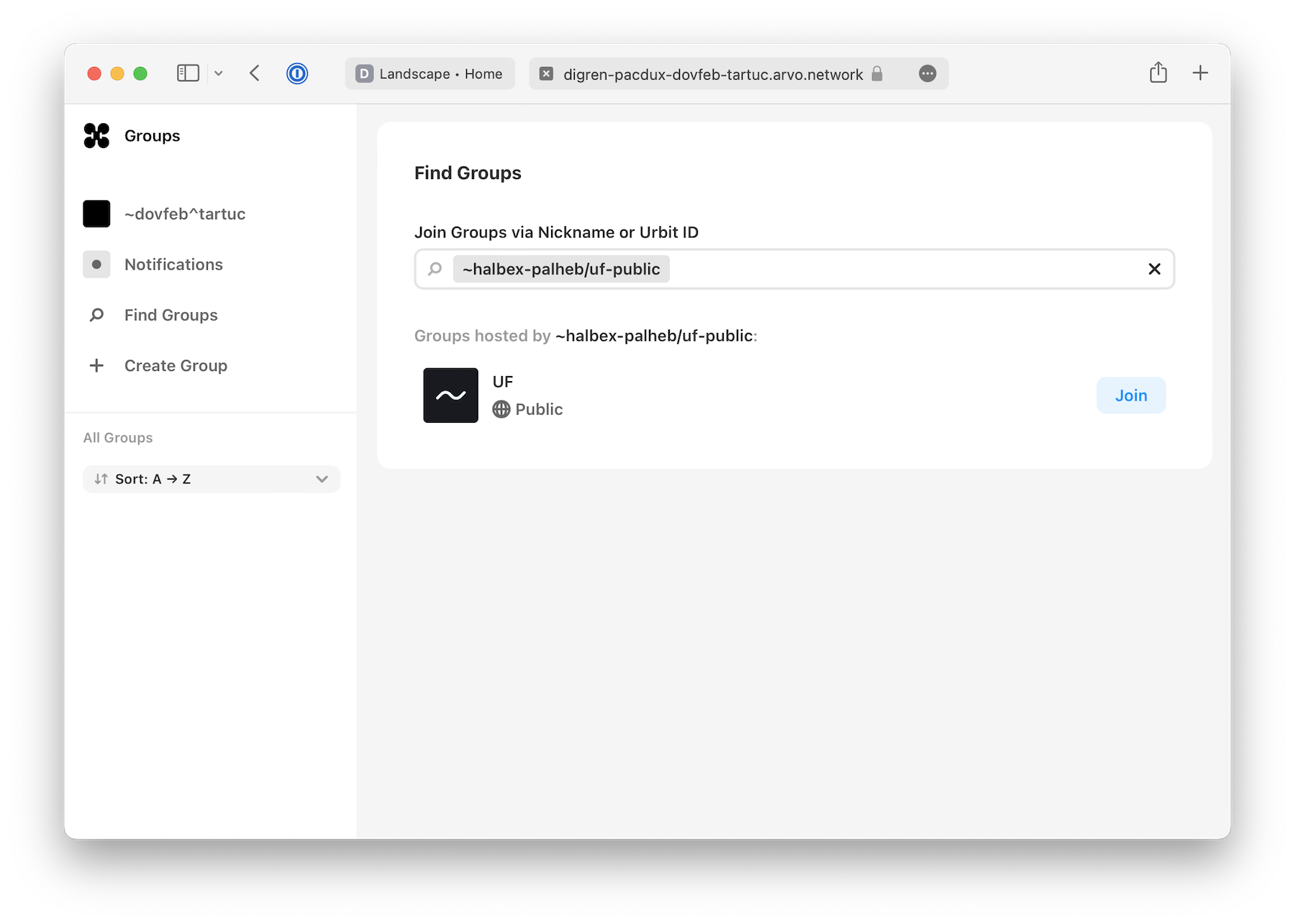
37Give it a minute and you'll see the first default channel of the group. For some larger groups with a large backlog, such as Urbit Community, this may require for than a minute.
39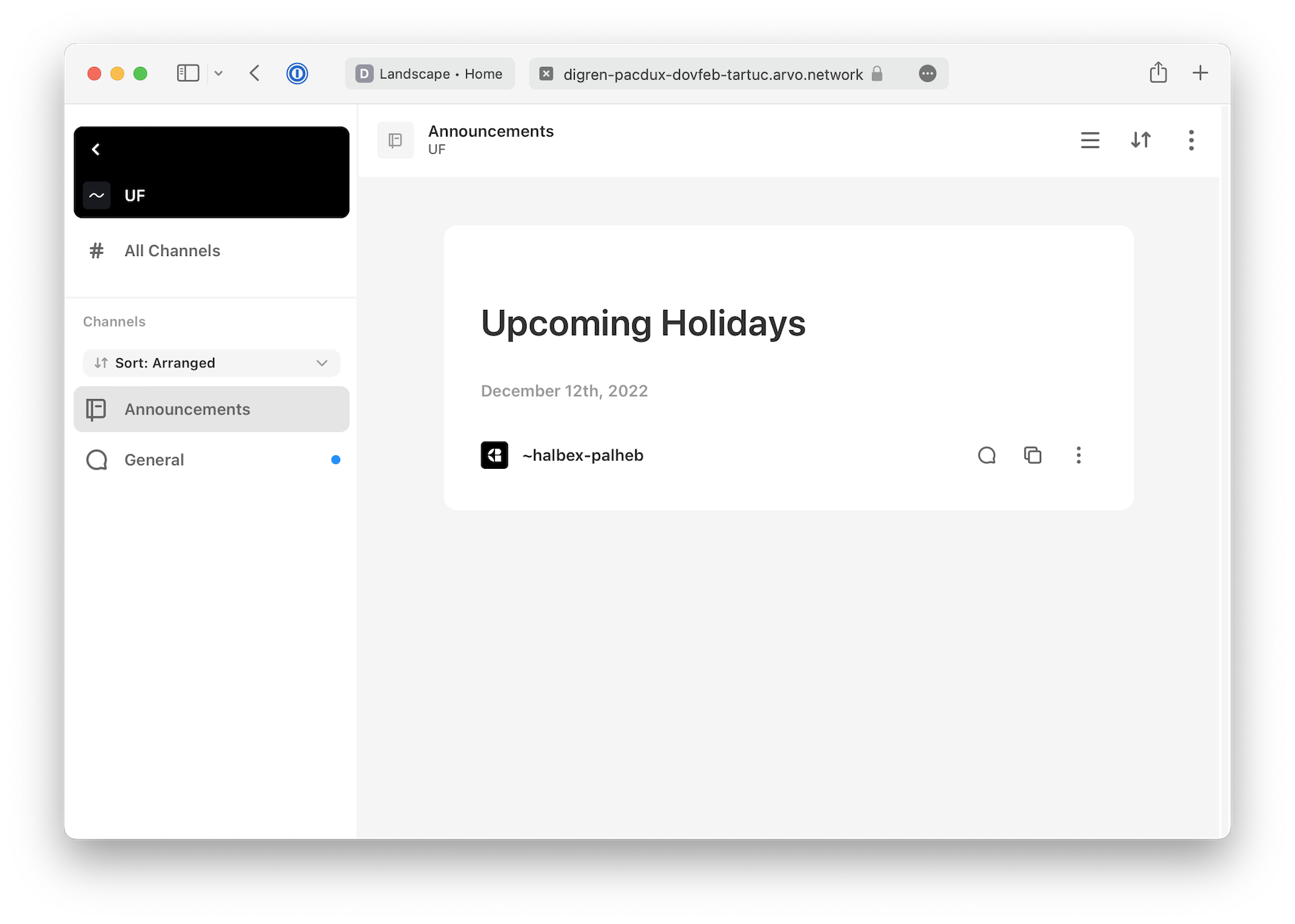
42We can join more channels in the group by clicking on the "All Channels" link in the left column.
44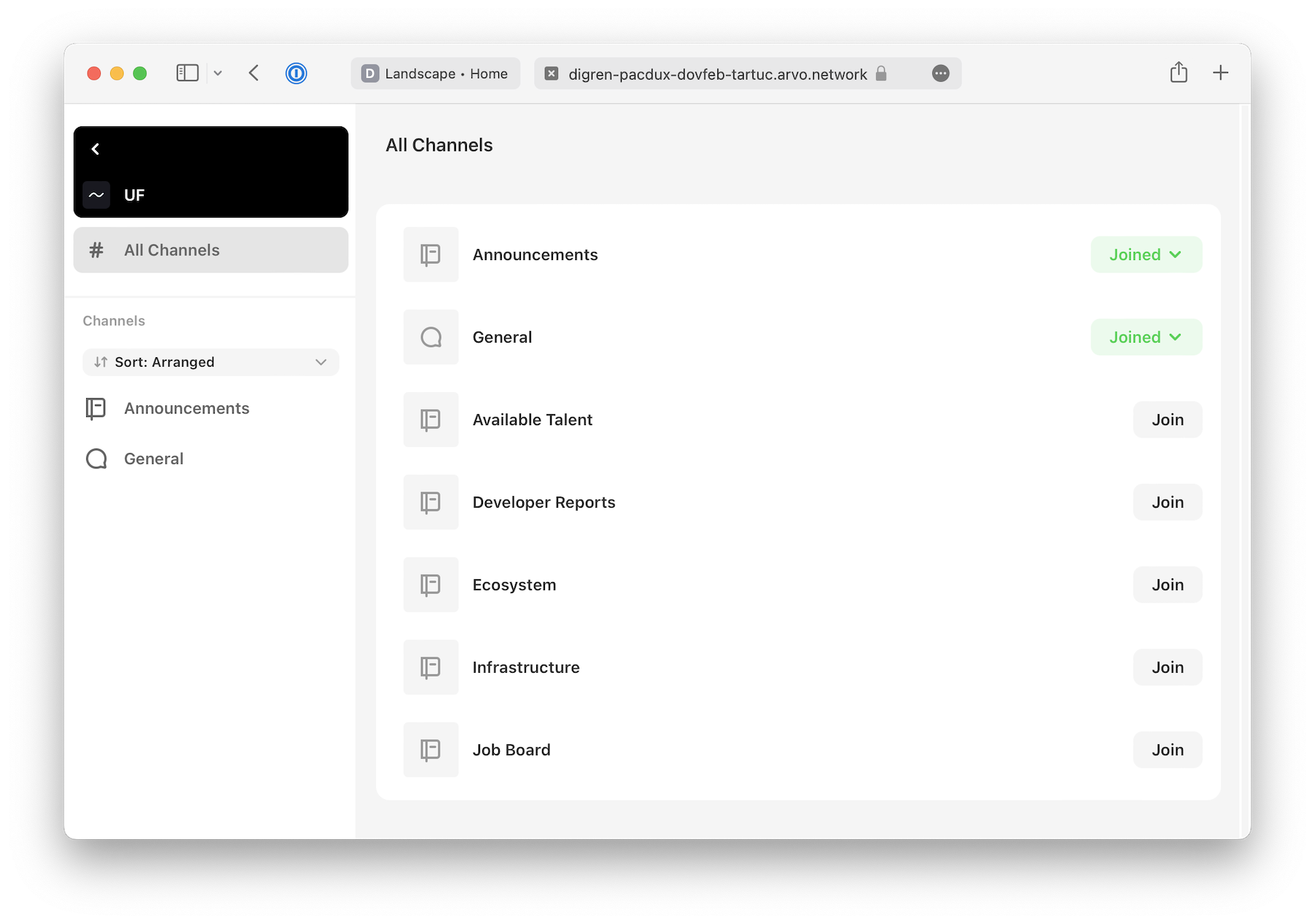
48### 4. Chat and post on the network
50In addition to posting text, you can now react, start threads, and reference messages by hovering over chat messages. And you can leave comments in notebooks if they are enabled.
52Remember to be nice, and have fun.
54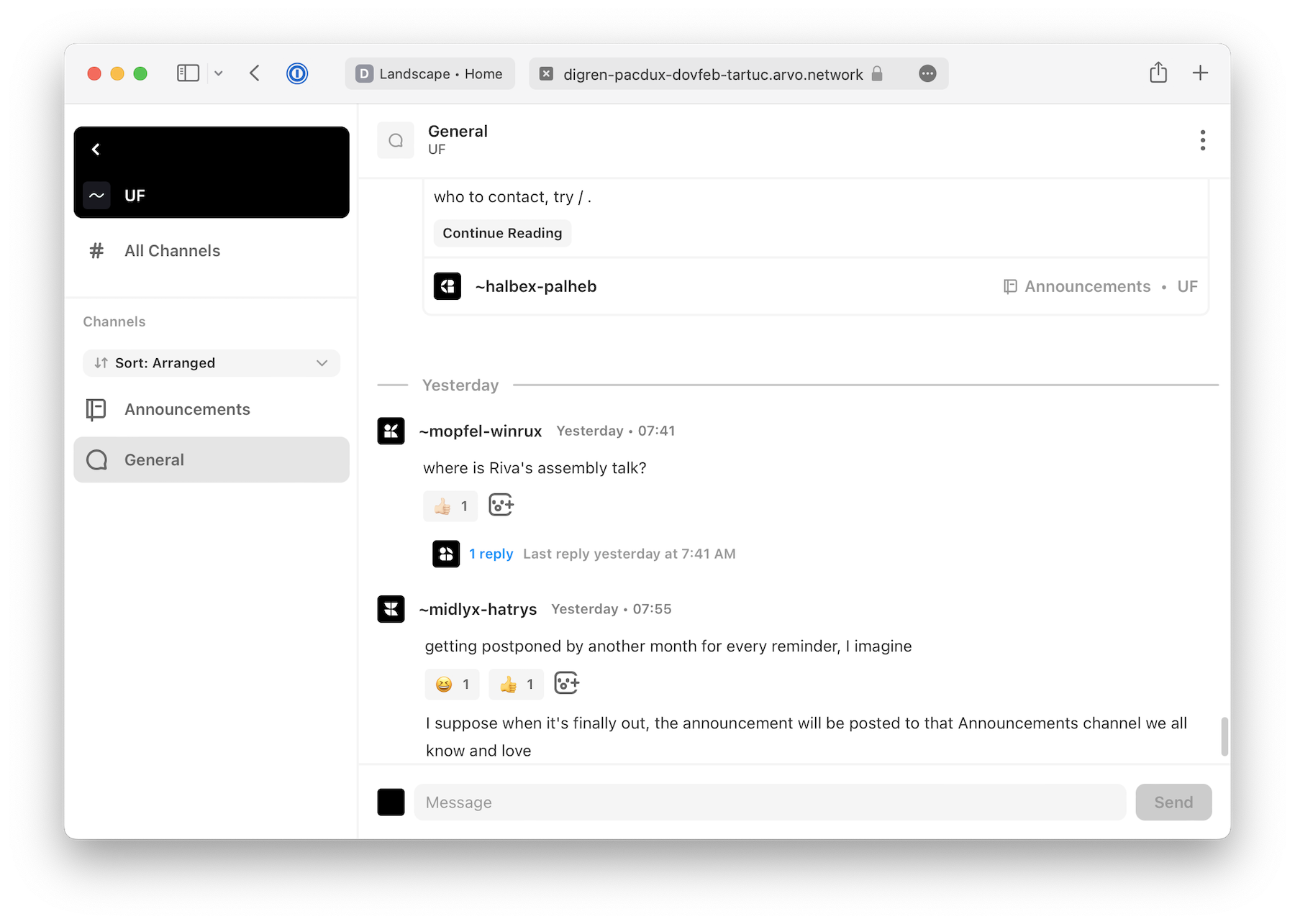
keysesc to close
- j k
- move down, up
- enter
- open
- esc
- back, or up a level
- 1 2 3 4
- readme, files, commits, refs
- /
- filter
- y
- copy the clone command
- c
- compare the chosen commit with another (or shift-click both)
- ?
- show or hide this list